How to Enroll an Employee in dlrSecured Identity Management
The Edit User panel on the User Management screen in the XtreamService application can be used to enroll an employee in dlrSecured Identity Management. Using dlrSecured, employees are required to complete multifactor authentication (MFA) when signing on to the XtreamService application by providing a unique verification code sent to their Email address.
To enroll an employee in dlrSecured, an Email address must be linked to the employee record. This Email address is used to complete the authentication process when an employee signs on to the XtreamService application. Once an Email address for the employee has been added and the employee has been enrolled, the employee can sign on to the XtreamService application using the dlrSecured MFA process.
In addition, the Edit User panel can be used to review and update the employee's role, as needed.
Note - It is recommended that corporate Email addresses be used to enroll employees in dlrSecured.
-
Access the Edit User panel.

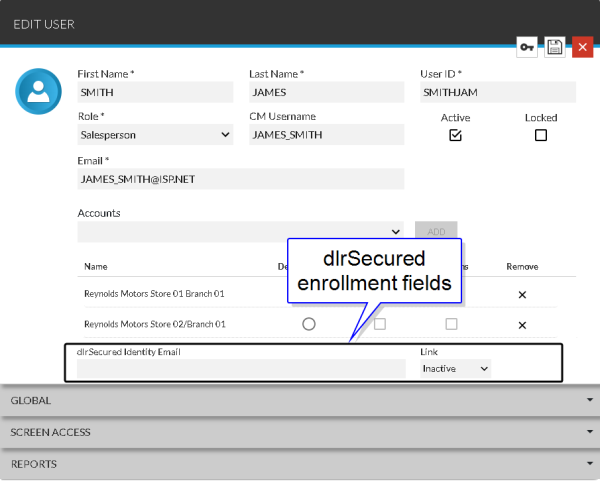
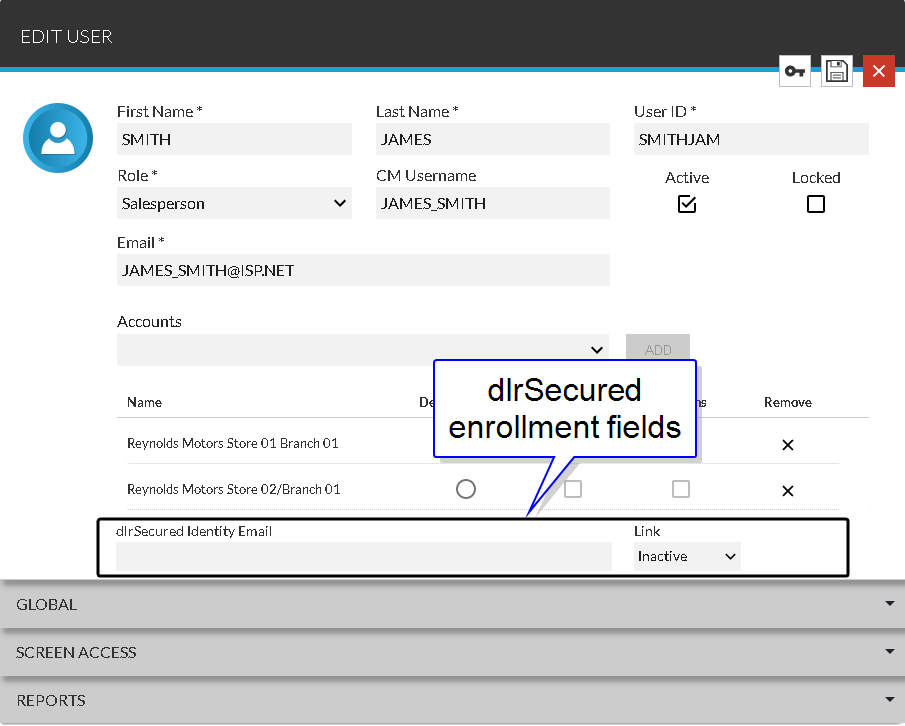
To access the Edit User panel, select a user profile in the Results section on the Search Criteria panel on the User Management screen.
-
In the dlrSecured Identity Email field, enter a unique Email address to link.
-
In the Link field, select Active.
Click the
 (Down Arrow) icon to display a list of valid entries.
 -
Click the
 (Save) icon.
The employee is enrolled and can sign on to the XtreamService application using dlrSecured. For a procedure about signing on to the XtreamService application using dlrSecured, refer to How to Sign On to the XtreamService Application Using dlrSecured Identity Management for the First Time.
Click here for a list of products that may be mentioned in this help file.